
Controls for Defend Your Base From Scary Worm
Standard Roblox movement plus this game's shop, placement, and door repair prompt.
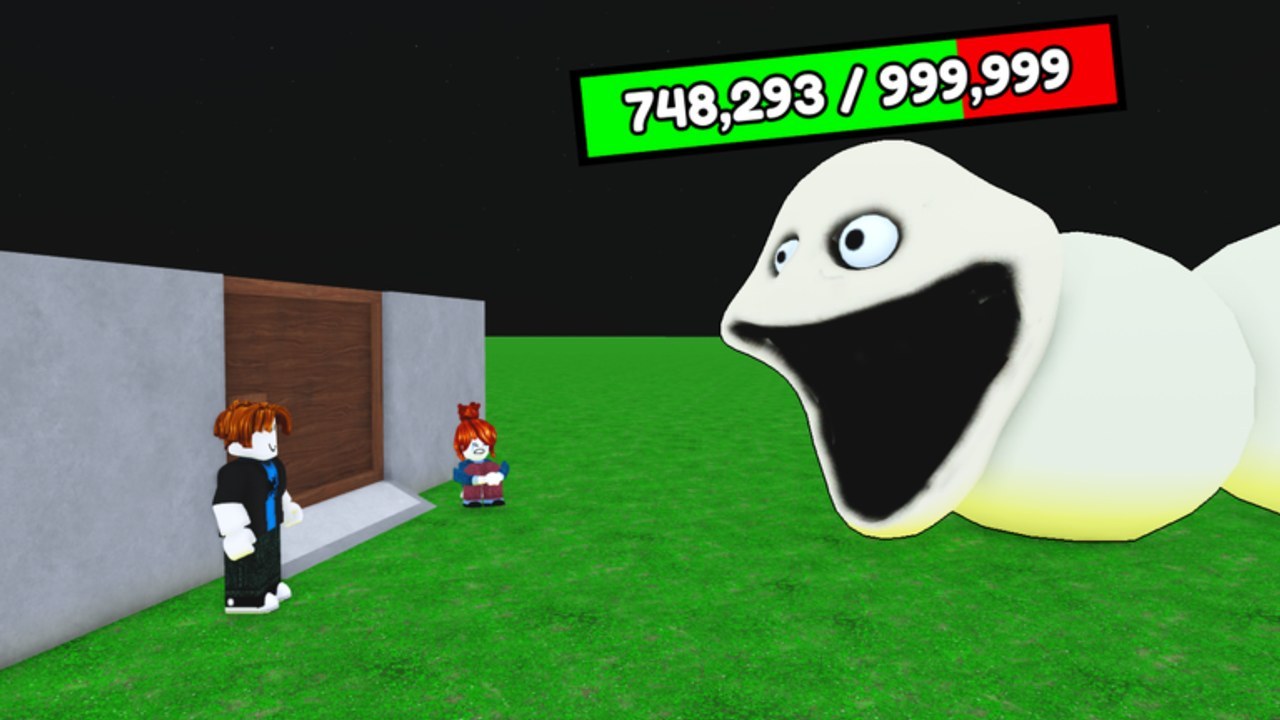
Defend Your Base From Scary Worm does not ship a unique esports keymap. It is a Roblox experience: you move an avatar, you look with the camera, you click or tap UI, and you walk up to the wooden door when you need to repair. This page describes that honestly for PC, mobile, and console. It does not invent F-keys, custom combos, or a hidden “repair all” bind that footage never shows.
If you already live in Roblox, you can skip the movement section and jump to shop, placement, and the repair prompt — those are the three actions that decide a match. If you are new to Roblox, read the whole page, then go back to getting started so the first 450 cash is not spent while you fight the camera.
PC (keyboard and mouse)
Movement is the Roblox default. WASD (or arrow keys) walks. Space jumps. The mouse looks; many players enable Shift Lock in Roblox settings so the character faces the camera. Scroll or the in-experience camera controls zoom. None of that is unique to Evil Worm Simulator’s place. If a key does nothing, check Roblox Settings → Keyboard and the experience’s on-screen buttons before assuming a wiki bind.
Interact with world prompts (the door repair, a claim, a shop NPC if one exists on your plot) by walking into range and using Roblox’s default interact — commonly E or a click on the prompt billboard. This wiki will not pretend we have a leaked custom key from the developer. If the prompt is on screen, press the key it labels. If it is not on screen, you are out of range; walk closer to the wooden door instead of mashing random letters.
Chat is Roblox chat (/ to focus on PC). Voice chat is not supported on the listing. Camera (Roblox’s face-camera feature) is not supported. You coordinate a 35-player server with text and by watching HP bars.
Mobile
On a phone or tablet you get Roblox’s virtual thumbstick on the left and camera drag on the right. Jump is the on-screen jump button. There is no WASD. Shop purchases are taps on the GUI. Placement is a tap on the plot after you have selected a unit or printer. Repair is a tap on the prompt when you are close to the door.
Mobile deaths in this game are usually camera deaths: you pinch-zoom into a mortar and lose the door HP bar. Keep the wooden door in frame. If the thumbstick slides you off the plot, stop moving and tap repair before you shop. Auto-rotate and a smaller UI scale in Roblox settings help; they are client settings, not game unlocks.
Console
On Xbox or PlayStation, Roblox uses the standard stick layout: left stick move, right stick camera, face button to jump, face button or interact button to confirm prompts. The exact face-button name follows your Roblox console client (A / Cross for jump is the usual default). This experience does not document a custom controller overlay in its Roblox page, so treat prompts as on-screen: if a billboard says to press a button, press that button.
Console players should still open the shop with the on-screen button highlight, not with an invented D-pad shortcut. Placement is confirm on a highlighted tile. If placement ghosting feels sticky, move the avatar — the shop is following you, not a free RTS cursor.
Shop, build placement, and the repair prompt
This is the game-specific layer on top of Roblox.
Shop. An on-screen buy list sells printers, farms, spear throwers, mortars, rares, door options, and late blue units. Select an item you can afford (opening cash is about 450). If the button is grey, you are broke — farm first, see how to farm. There is no separate “build mode” key we can cite. The shop is always a GUI.
Placement. After a purchase, you place the unit or printer on your claimed plot. Click or tap a valid tile. Put printers and farms behind the wooden door. Put DPS covering the lane. If the ghost is red or will not drop, you are off your plot, overlapping another building, or looking at someone else’s bunker on a 35-player server. Move. Do not spam the buy button and dump cash into failed placements.
Repair prompt. Walk to the wooden door. When you are in range, a prompt appears. Activate it. That is the entire repair control. It is not a hotbar slot. It is not a hold-to-win minigame we can document from footage. Spam it whenever HP ticks down and keep the door near 400. If the prompt will not show, you are too far, another player is crowding the hinge, or a unit is sitting on the interact volume — clear space, walk in, try again. How to protect the door is the strategy; this paragraph is the input.
Claiming a base. First action in a server: take an empty plot. That is also a proximity or GUI claim, not a secret key. If you cannot claim, the bunker is owned. Find another. How to play covers the co-op etiquette of not stealing a neighbor’s shop focus.
Settings that actually help
- Camera sensitivity: high enough to check the worm, low enough to keep the door in view.
- Shift Lock (PC): useful so you can backpedal toward the printer while facing the lane.
- Graphics quality: drop it on a full 35-player server if the shop UI stutters during the 25-second boss countdown.
- Do not bind over Roblox’s interact key in your OS. If E (or the prompt’s key) is stolen by a clip tool, you cannot repair.
None of these settings change shop prices or worm HP. They only change whether you can hit the prompt in time.
What we will not list
We will not publish a fake table that says “R = repair,” “F = farm upgrade,” or “Q = mortar.” Footage and the Roblox page do not give those binds. If a YouTube overlay shows a streamer’s personal macros, those are theirs. Your repair is the in-world prompt. Your build is the shop GUI. Your movement is Roblox’s.
If a patch on 3 September 2026 added a new button, it will show up in the UI and on updates. Until then, learn three motions: walk, click shop, tap repair. Then spend the opening 450 on a printer, not on fighting your camera. The Guides Hub sends you from here into layouts and boss strategy once the prompt is muscle memory.
If the repair prompt is missing, you are not missing a secret keybind — you are standing too far from the wood. Walk to the door, use the labeled interact, and keep 400 HP on the gate while the shop GUI handles everything that shoots.
Frequently Asked Questions
Quick answers to the most common questions.
What key repairs the wooden door?
Whatever the on-screen prompt labels (often E or a click/tap) while you are in range. There is no hidden repair bind. See the repair section above and how to protect the door.
How do I place a printer or turret?
Buy it from the on-screen shop, then click or tap a valid tile on your claimed plot. Put printers behind the door.
Does mobile use different abilities?
No. Mobile uses a thumbstick, camera drag, and taps on the same shop and repair prompt. Keep the door in frame.
Can I use voice chat to call repair?
The listing does not support voice chat or Roblox camera. Use text chat and HP bars on 35-player servers. How to play covers co-op calls.
Where do I go after I can move and repair?
Open getting started for the first 450 cash, then how to farm so the shop stays affordable.